Distinguish port from channel
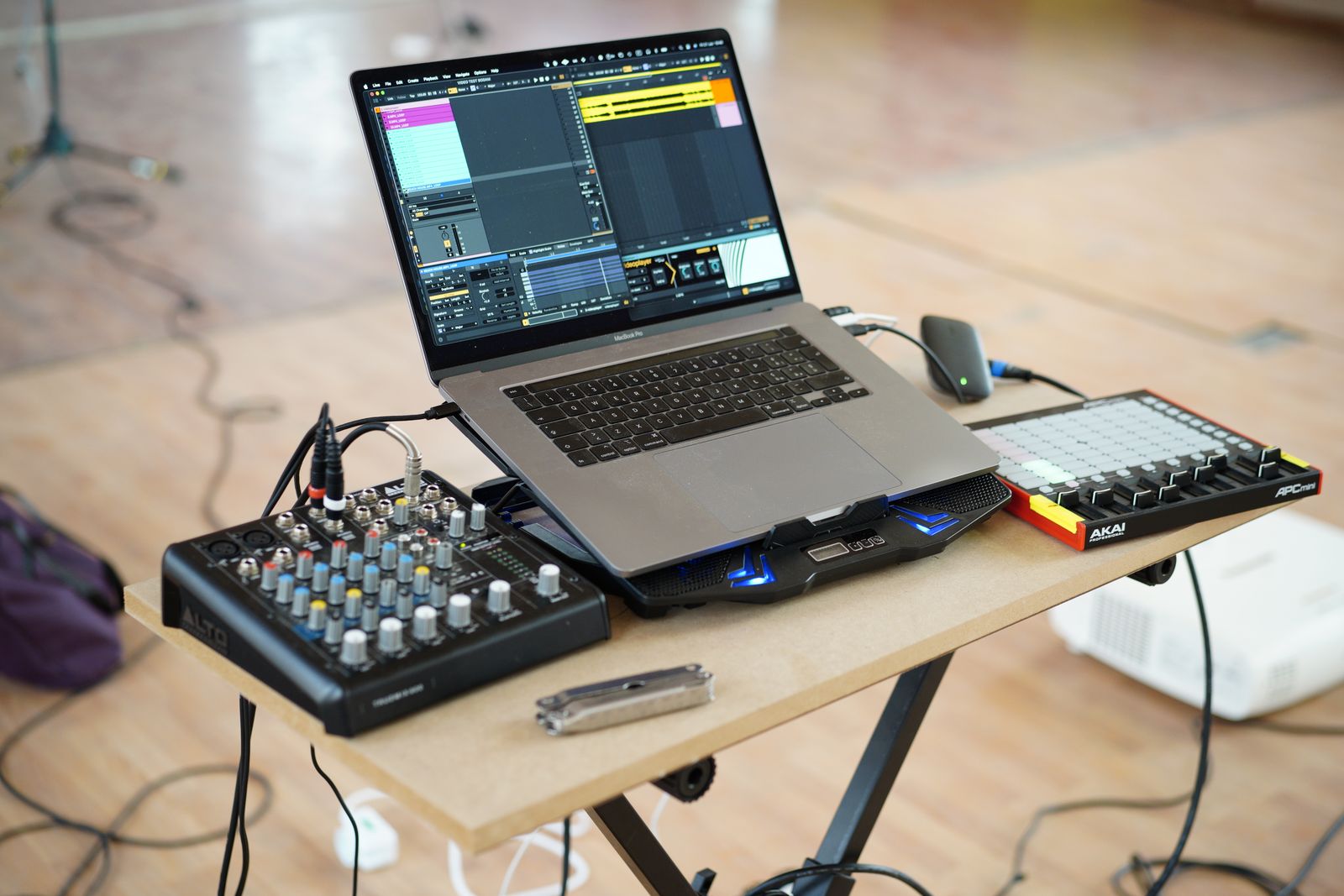
A conventional MIDI 1.0 port provides sixteen channels. A USB connection can expose more than one port, so the cable count does not necessarily match the number of available channel groups. Think of the port as the route and the channel as an address within that route. The MIDI Association's USB and DIN guidance describes this distinction.
Name the devices and ports clearly in your notes. Two instruments can both use channel one without conflict if they receive on different isolated routes. Conversely, two instruments on the same route may respond together if both listen to the same channel. Changing a track's name does not alter that routing.
Assign one part and prove it works
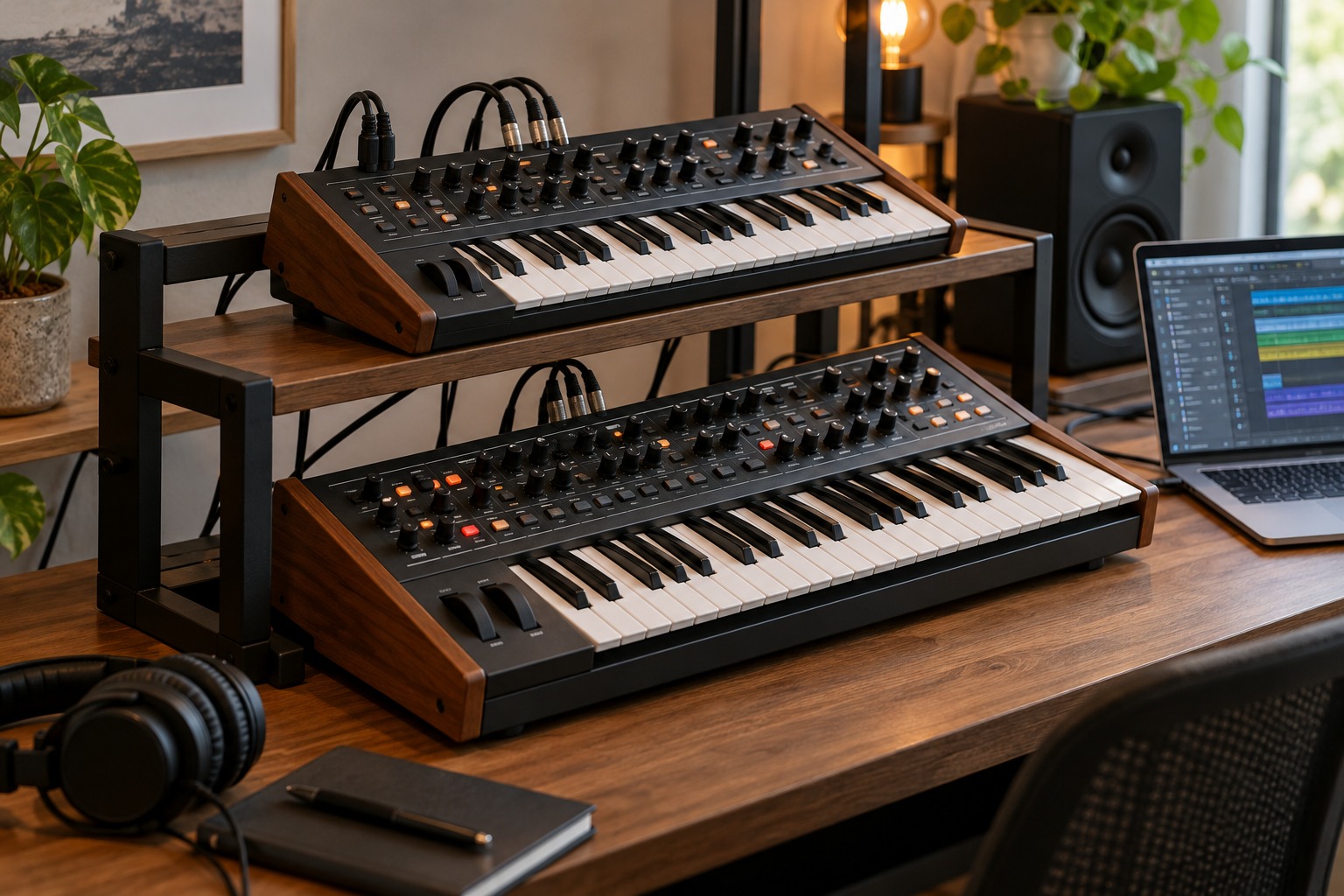
Suppose a keyboard should play a hardware bass sound while a second track addresses a separate synth part. Choose the intended output port and channel for the first track, then set the receiving part to the matching channel. Play a few notes and confirm that only the intended part responds before adding the second route.
Check whether a receiver is set to an omni or all-channel mode. Such a mode may be useful for a simple setup but defeat the attempt to separate parts. The exact setting name varies. A multitimbral instrument may also have a dedicated performance or multi mode with per-part channel assignments; consult its manual rather than assuming the single-preset screen supports multiple parts.
Channels do not create audio outputs
Several MIDI parts can feed a sound source whose audio still emerges from one stereo output. If you need separate recorded tracks, check the instrument's audio output capabilities and the interface inputs available. Assigning different MIDI channels does not automatically split the sound into separate audio files.
In a software instrument, multiple MIDI parts may likewise share one audio return unless multi-output routing is supported and configured. Test the intended export or recording path early. It is easier to discover this limitation in a four-bar sketch than after arranging an entire song around an assumed routing feature.
Avoid duplicate and circular messages
If each key seems to trigger twice, inspect monitoring and MIDI-thru paths. The controller may reach the instrument directly and through the DAW at the same time. Work on a simple routing diagram and disable unintended paths rather than compensating by editing duplicate notes after every recording.
When recording an external keyboard that also plays its internal sound, consult the instrument's local-control guidance for the intended setup. The correct choice depends on whether the DAW is returning notes to the instrument. Do not apply a universal on or off rule without understanding that path.
Save a small test project with the working port and channel assignments. Include notes about the hardware mode and preset if the DAW cannot restore them. Before a session, play one part at a time and confirm its destination. A few deliberate checks make a multi-instrument setup much easier to troubleshoot than a collection of remembered channel numbers.
Document a two-part arrangement
For a simple test, label two tracks Bass and Pad. Give each an explicit destination port and a different channel within that port, then configure the receiving instrument's corresponding parts. Record a few bass notes alone, followed by a few pad notes alone. If both sounds play during either test, stop and inspect receive modes before recording a full arrangement.
Next, mute one MIDI track during playback and confirm that only its intended part stops. This tests the stored performance rather than just live keyboard routing. Finally, record or render the audio according to the instrument's available outputs. Save the port, channel, part and audio-return names together. That small table is easier to restore after a device reconnects under a new port name than a memory that the bass was somewhere on channel two.